Frequently Asked Questions
1. Why can't Bohrium CLI find job-related information?
When using the Bohrium CLI for the first time, you need to bind an AccessKey. Please ensure that the bound AccessKey is correct. Please visit Bohrium-AccessKey to generate an AccessKey (Recreating the AccessKey will cause the original one to become invalid.)
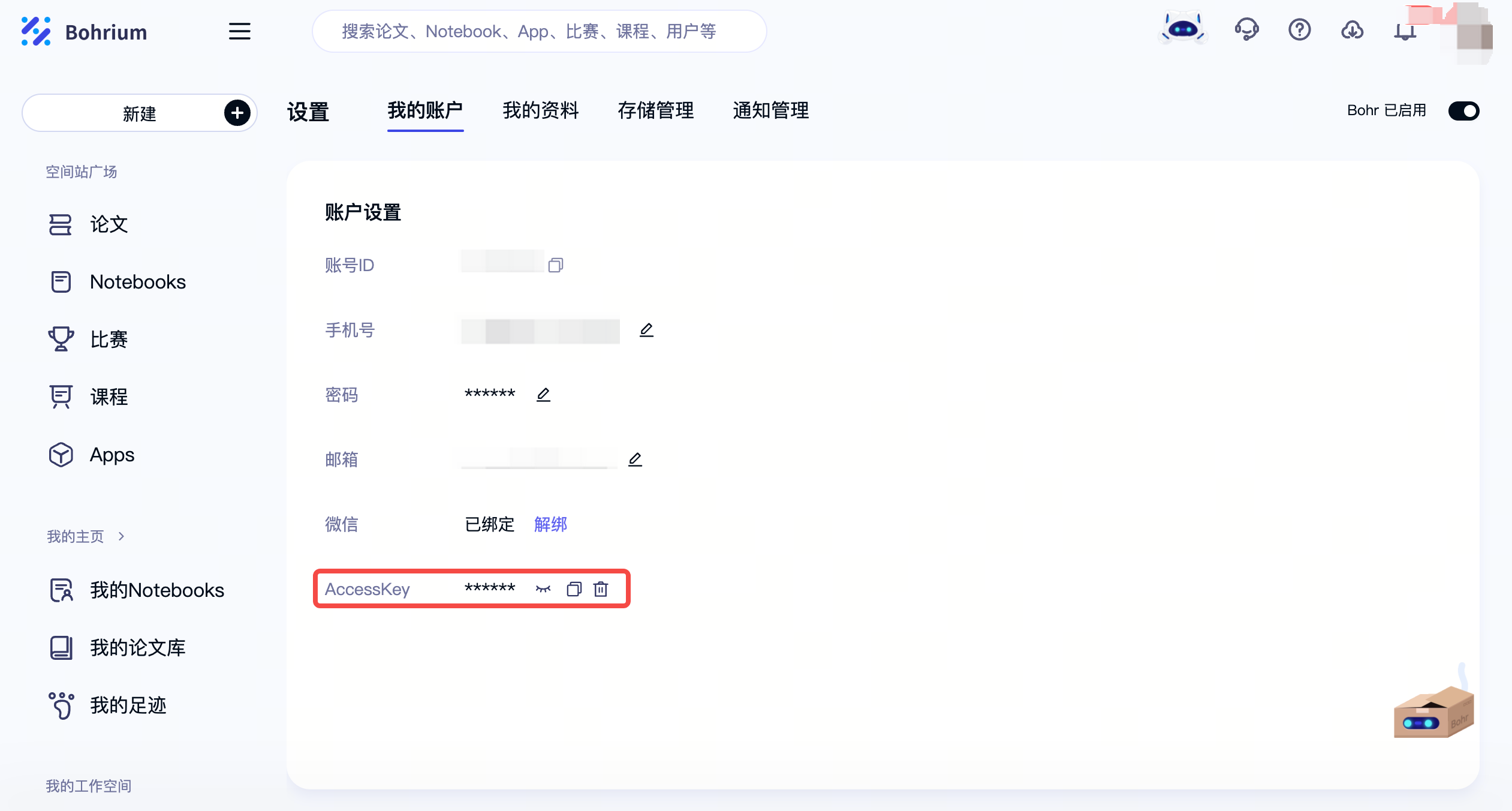
After obtaining the ACCESS_KEY value, configure the environment variables for ACCESS_KEY as follows:
Note: Please replace the
XXXXafterACCESS_KEYwith your own AccessKey.
ZSH
If you are using ZSH, use the following command to write the ACCESS_KEY into ~/.zshrc.
echo 'export ACCESS_KEY=XXXX' >> ~/.zshrc
source ~/.zshrc
BASH
If you are using ZSH, use the following command to write the ACCESS_KEY into ~/.bashrc.
echo 'export ACCESS_KEY=XXXX' >> ~/.bashrc
source ~/.bashrc
Windows
Open Command Prompt (CMD) and run the following commands (note that the setx command requires reopening the Command Prompt to take effect):
setx ACCESS_KEY XXXX
Alternatively, you can manually add these variables through the system settings.
2. What should I do if an error suddenly occurs while creating a dataset using the Bohrium CLI?
Since bohr supports resuming from breakpoints, if an interruption occurs due to network issues or other factors, you can resume by re-executing the same command. Then, follow the prompt and enter y to recover the previous files, allowing the process to resume from the breakpoint.
3. Can’t find the project group ID created with Bohrium CLI on the Bohrium platform?
The job group ID created with bohr job_group create is used to submit multiple jobs to the same job group. It is not the same as the job group ID on the Bohrium platform; this job group ID is only applicable when submitting jobs using the Bohrium CLI.。
If you want to submit all jobs to the same job group, first use bohr job_group create to create a job group ID. Then, write this job group ID into the job_group_id field in the job.json file used for submitting jobs. An example is as follows:
{
    "job_group_id":0000
}